Week numbers sound simple until a report says Week 1 and two people mean two different weeks. Excel can show week numbers fast, but you need to pick the right system, then make it consistent across files, teams, and countries.
Summary
Excel can return week numbers with built in functions, but the result depends on the week rule you choose. For work reports, ISO week numbering is often the safest choice because it matches many business calendars and handles year boundaries cleanly. Use WEEKNUM for simple needs, or use an ISO formula for ISO weeks. Always confirm the week start day, then test dates near New Year and leap years. Keep one standard across dashboards, exports, and templates.
A fun knowledge check before you build formulas
Two different ideas hide behind the phrase week number
People use week numbers in two main ways.
- Simple week count where Week 1 starts on January 1 and counts upward.
- ISO week numbering where weeks start on Monday and Week 1 is based on a rule that keeps weeks aligned across years.
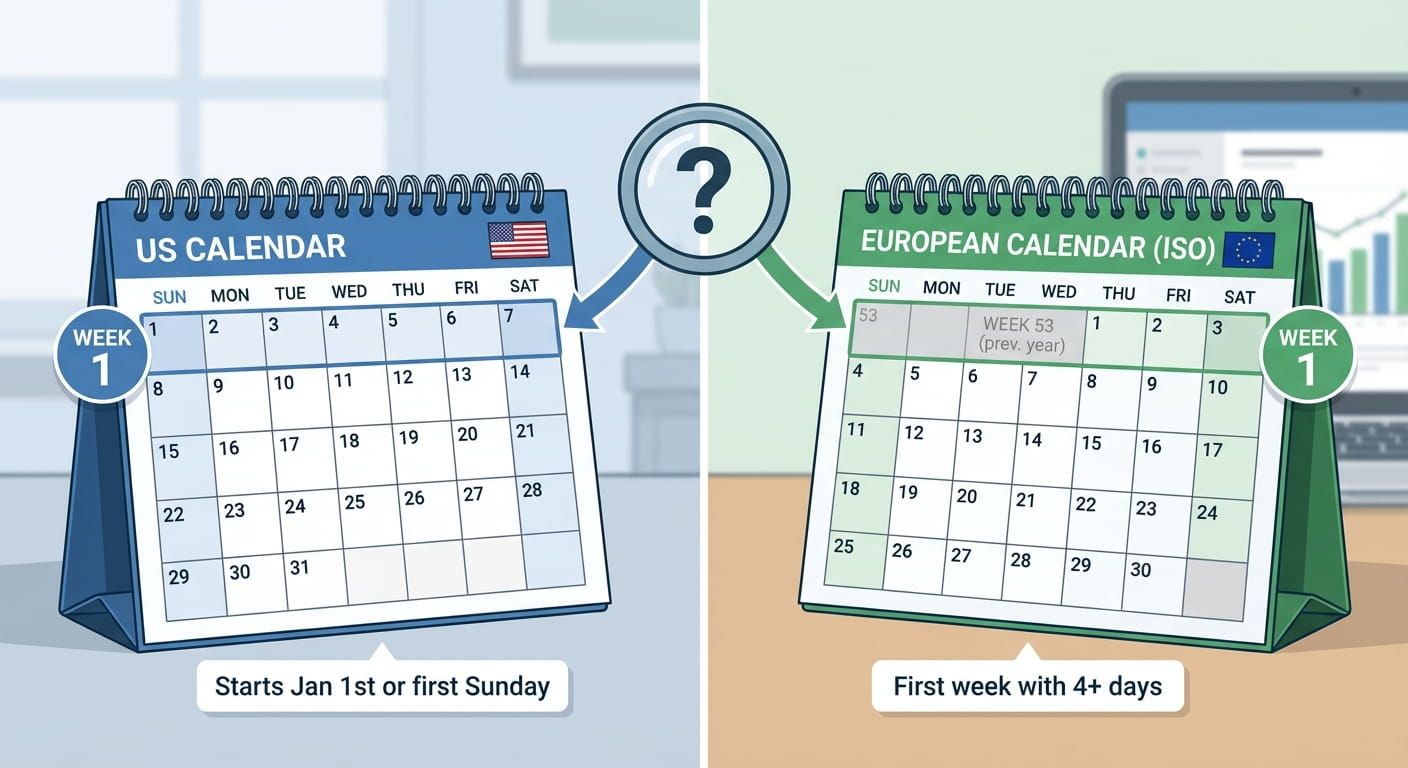
Excel can do both. The tricky part is that two spreadsheets can both say Week 1 and still disagree. That is why the first job is not typing a formula. The first job is deciding which week system your file should follow.
Tip
If your team shares week based reports across borders, pick one standard and write it in the sheet header. It saves hours of back and forth later.
The simplest week number in Excel with WEEKNUM
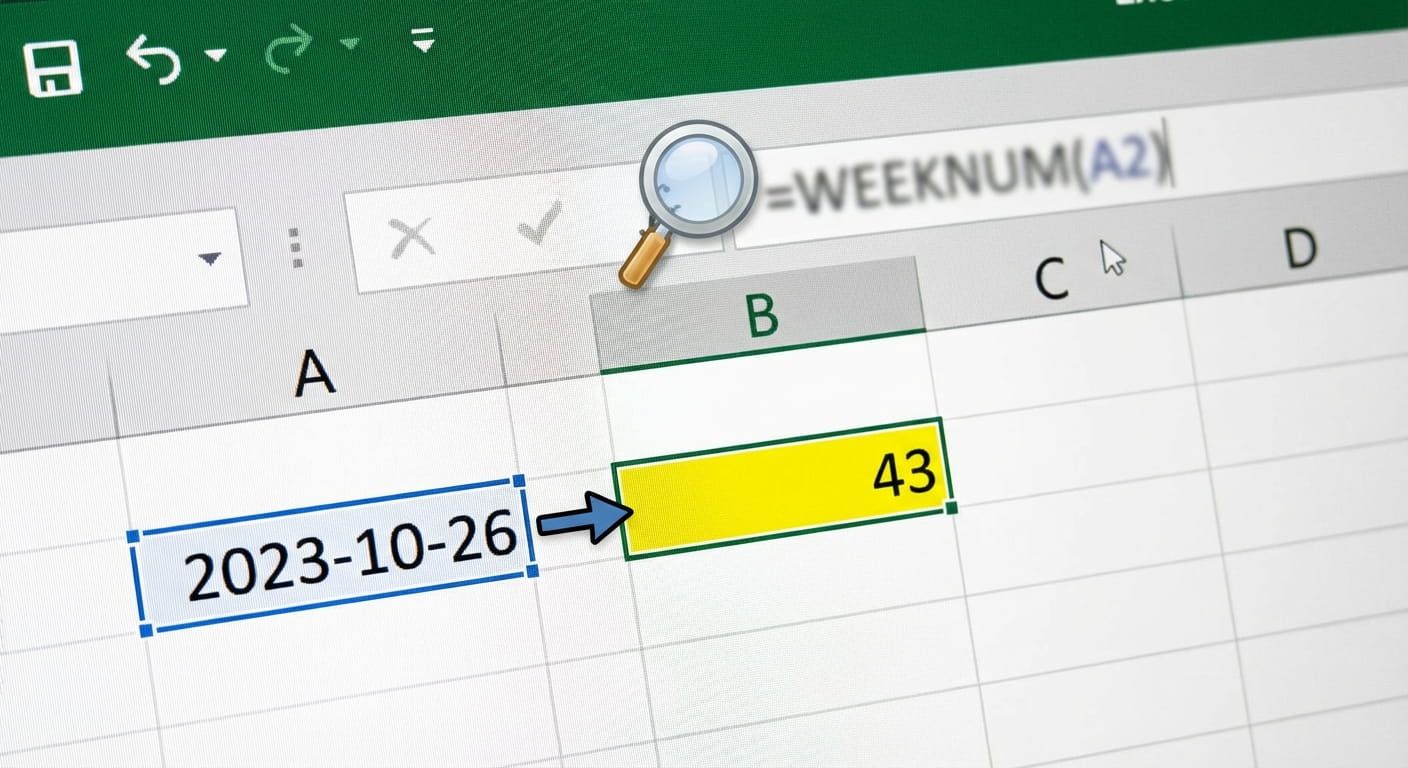
If you want a straightforward week number for a date in cell A2, start here.
Formula
=WEEKNUM(A2)
That returns a week number using a default rule that may start weeks on Sunday, depending on your Excel setup. Many people never notice the rule until a dashboard looks off around New Year.
WEEKNUM can take a second argument that tells Excel what day a week starts on and how to count. In practice, you will see these used most often:
- Weeks start on Sunday for many personal calendars and some regional habits.
- Weeks start on Monday for many business calendars and many countries.
- ISO style week numbering where Week 1 is based on the first Thursday rule, and weeks start on Monday.
Even if you do not memorize the argument values, you can still work cleanly by keeping the rule consistent inside one workbook. If you are building a template for others, write the rule in plain language at the top of the sheet.
ISO week numbers in Excel without confusion
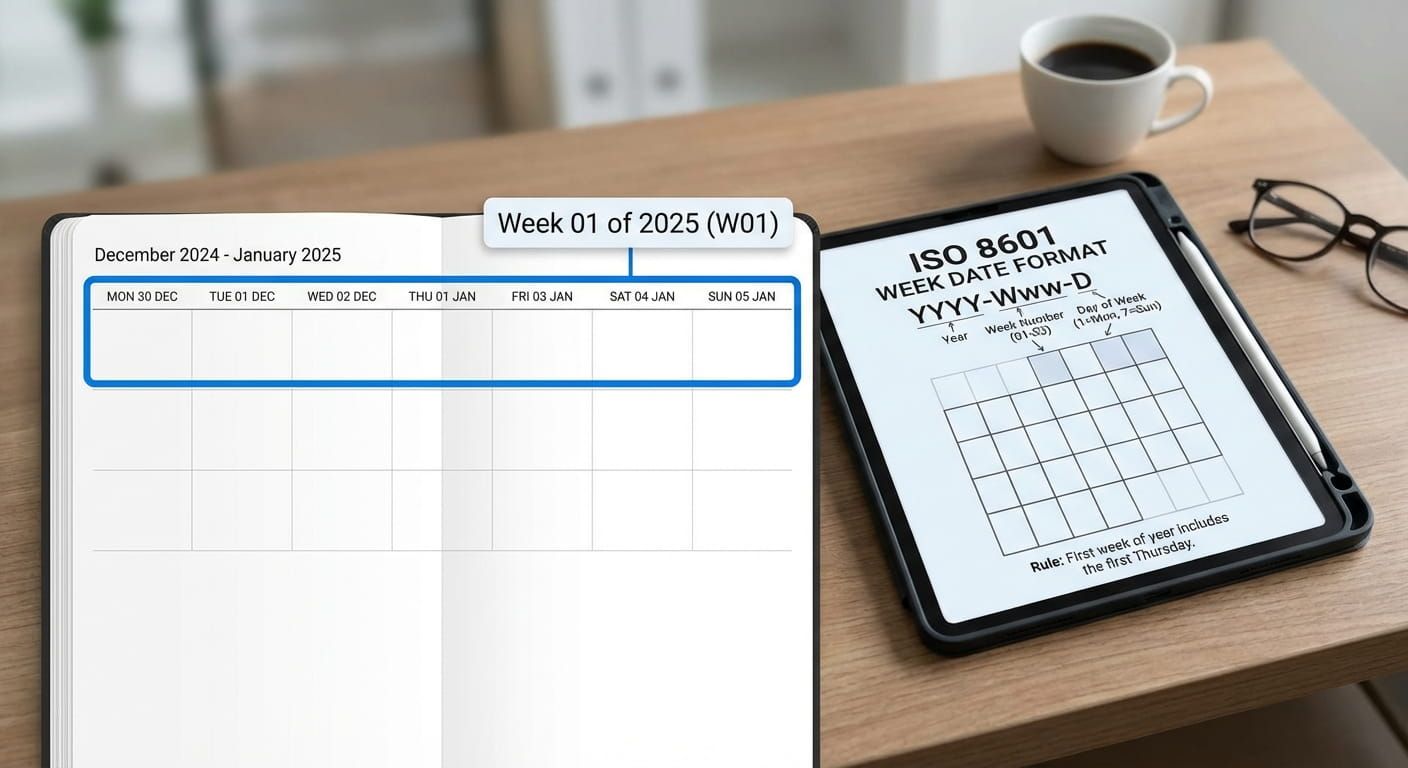
ISO week numbering is popular because it behaves well at year boundaries. That is where most week based reporting breaks down. In ISO 8601 week date rules, weeks start on Monday, and Week 1 is the week that contains the first Thursday of the year. That means a date in early January can belong to the last ISO week of the prior year, and a date in late December can belong to ISO Week 1 of the next year.
Excel offers different paths depending on your version. If your Excel has an ISO week function, use it. If not, you can still calculate an ISO week number with a formula built from standard date functions.
One common ISO week formula pattern
=WEEKNUM(A2,21)
If your Excel supports that return type, it gives ISO style numbering directly. If that option is missing or behaves differently in your build, you can use an ISO style calculation approach based on shifting the date to the Thursday of its week, then counting weeks from the first week of the ISO year. The key idea stays the same: anchor to Thursday, then count.
Keep a simple test set in your workbook:
- January 1 of the year
- January 4 of the year
- December 28 of the year
- December 31 of the year
Those dates tell you right away if your sheet follows ISO rules or a simple week count.
Week systems
This table helps you decide what to use and what to tell teammates. The colors are muted and meant for work documents.
| Week system | Week start day | How Week 1 is defined | Best for | Common gotcha |
|---|---|---|---|---|
| Simple week count | Varies | Starts at January 1 and counts up | Personal tracking, informal notes | New Year boundary can look odd across teams |
| Business week starting Monday | Monday | Week 1 often begins near January 1, based on tool settings | Internal schedules in many countries | May still differ from ISO rules near year end |
| ISO week numbering | Monday | Week 1 contains the first Thursday of the year | Cross country reporting, analytics, planning | Early January may belong to the prior ISO year |
Finding week numbers for a whole column, without messy edits
Most sheets have a column of dates, then you want a week number column beside it. Keep it simple and consistent.
- Make sure your date column is real dates, not text. A date should align to the right by default in many Excel setups, and it should respond to date formatting.
- In the week column, enter your chosen formula in the first row of data, for example
=WEEKNUM(A2,21)if you are using ISO style numbering. - Fill down. Use the fill handle or double click it to copy to the bottom of your data block.
- Label the column clearly, for example Week number, ISO Monday start.
If you work with time series reports, add a second column for the week year. That avoids the classic problem where ISO Week 1 belongs to the next year while the date still looks like December. A week year column can be a lifesaver for pivots and charts.
Date formats, months, and quarters, how week numbers fit in
Week numbers live in the same family as date formats, month labels, and quarter groupings. Excel is great at all of these, but consistency is the theme.
Here are a few practical patterns people use in dashboards:
- Week label as text, for example 2026 W05, built from a year value and a week value.
- Month and week together when you need a friendly label, for example Jan Week 2. This is more for visuals than for analysis.
- Quarter plus week for planning, for example Q2 Week 6, often used in roadmaps.
If you want a calendar view beside your sheet, a separate calendar page can help people sanity check what they see in Excel. Time.you has a clean calendar area that works well for that kind of cross check, and the layout is easy to scan in meetings.
You can keep a reference tab that links to time.you calendar so anyone can confirm dates and weeks without hunting through settings.
Leap years and the 53 week surprise
Leap years add one extra day to February, but the bigger week number twist is not the extra day. The twist is that some years contain 53 weeks under certain rules. This can happen under ISO week numbering, and also under other week systems depending on how weeks are defined.
Here is the practical impact in Excel:
- A yearly pivot table may show a Week 53 row.
- A chart may look like it has an extra point compared with other years.
- A template that assumes only 52 weeks may break, especially if it uses fixed ranges.
Keep your formulas flexible and your tables sized with Excel Tables or dynamic ranges. That way Week 53 does not feel like a bug, it is just another row of data.
If you want a visual year reference while testing, a compact view can help. A handy one is 2026 calendar, it makes it easy to scan across weeks while you verify Excel results.
Date math, days between, and why week rules matter
Week numbers often sit beside other time calculations. A common one is days between two dates. Another is grouping tasks by the week that contains a due date. If your week rule is inconsistent, these features feel unreliable even if the math is fine.
Keep these habits in mind:
- Store dates as dates, not text.
- Use one week rule across the workbook.
- Test boundary dates, then lock your template.
For project schedules, a Monday based calendar aligns well with many workplaces. For teams that report with Sunday starts, make that explicit in the sheet. The problem is never the choice. The problem is silence about the choice.
A practical pattern for reporting across countries
Time.you focuses on accurate time across the world, using atomic clock synchronized time so people can trust what they see in any timezone. That same mindset works for week numbers, pick a standard that travels well, then make it visible.
Here are examples where country context matters. If a stakeholder checks a public calendar in their country, they may expect a different week start day. Linking a country calendar inside the workbook can reduce confusion without adding more words to your report.
- Japan's calendar is a useful cross check for teams working with Tokyo schedules.
- United States's calendar can help when a report audience expects Sunday based weeks.
- United Kingdom's calendar is helpful when your audience expects Monday based business weeks.
- Germany's calendar fits well with many ISO style planning habits in Europe.
- India's calendar is a solid reference when you coordinate across large teams and timezones.
- Australia's calendar helps when weekly work is tied to local public schedules.
Workbook note you can copy
Week numbers in this file follow ISO rules, weeks start on Monday, Week 1 is the week with the first Thursday. Dates near year end may belong to Week 1 of the next week year.
Common mistakes that make week numbers look wrong
Most week number mistakes are not formula mistakes. They are expectation mistakes. Here is a handy checklist that reads well on a team wiki.
- Date column contains text that only looks like dates.
- Two sheets use different week rules, then you merge them.
- Pivot groups by week number only, without a week year field.
- Testing is done in the middle of a year, not near New Year.
- One person checks a local calendar with a different week start day and flags a mismatch.
Fixing these usually takes minutes. Spotting them late can take hours.
A mini guide to picking the right week rule
This section is meant to be skimmed. It is also the one many people bookmark.
- If you share weekly metrics across countries use ISO week numbering, then add a week year column for clarity.
- If your audience expects Sunday weeks use WEEKNUM with a Sunday start rule, then label it clearly.
- If you want a planning view aligned to most workplaces use a Monday start rule, and test late December and early January dates.
Excel will follow your instruction. People will follow your labels. Give both.
Your next sheet can be calmer than your last one
Week numbers in Excel are easy to calculate and easy to misread. The calm approach is choosing a week system on purpose, writing it down, then testing boundary dates before you ship a dashboard. If you do that once, your weekly reporting becomes predictable. Your charts line up. Your pivots behave. Your teammates stop asking why Week 1 changed. That is the real win, fewer surprises, more trust in the numbers.